← Git & GitHub from Zero
See and undo changes: git diff, restore, amend and revert

Lesson 2 of 7

See and undo changes: git diff, restore, amend and revert

See exactly what changed with git diff, then undo mistakes safely with restore, amend and revert. Includes a quick guide to which one to use.

The idea in plain words

Seeing what changed is like Track Changes in a document: every edit is highlighted. That is git diff. Throwing away your edits is like rubbing out pencil marks before you ink the page, which is what git restore does. git restore --staged is unpacking an item from the box before you seal it.

Once something is sealed into a commit you have two choices. Fixing the label on the last box is git commit --amend, which is fine while the box is still on your desk. If the box has already been shared, you write a correction note instead. That is git revert: a new commit that does the opposite of an earlier one.

Commands in this lesson

git diff
Show what you changed since the last commit. Add --staged to review what is staged.
git restore <file>
Discard your edits to a file and put back the last committed version. This cannot be undone.
git restore --staged <file>
Take a file back out of the staging area. Your edits are kept.
git commit --amend
Replace the last commit with a corrected one. Do not use it on commits you have pushed.
git revert <commit>
Undo a commit by adding a new commit that does the opposite. Safe for shared history.

Written notes from the video

Why learn to undo

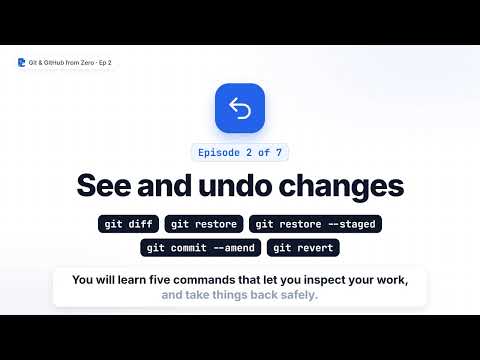
Everyone makes mistakes with their code. The trick is knowing how to undo them. This is Git and GitHub from zero, episode two: see and undo changes. You will learn five commands that let you inspect your work, and take things back safely.

Real-life analogies

Let us start with everyday versions of each command. Seeing what changed is like Track Changes in a document. Every edit is highlighted. Throwing away your edits is like rubbing out pencil marks before you ink the page. Taking a file out of the staging area is like unpacking something before you seal the box. Fixing the label on the last sealed box is called amending. And a correction note is better than tearing a page out of the book. That is revert.

Command 1: git diff

Command one: git diff. It shows exactly what you changed since your last save point. Lines starting with a minus sign, in red, were removed. Lines with a plus sign, in green, were added. Run it before every commit. It is the best way to catch mistakes early. Plain git diff shows edits that are not staged yet. After git add, use git diff --staged to review what is in the box.

Command 2: git restore

Command two: git restore. Say you edited a file and now wish you had not. git restore, then the file name, puts it back exactly as it was at the last commit. Be careful. This throws your edits away, and there is no undo. Only use it when you are sure.

Command 3: git restore --staged

Command three: git restore --staged. You ran git add on the wrong file. No problem. This takes it back out of the box. Your edits are not lost. The file simply moves back to your desk, ready to be staged again.

Command 4: git commit --amend

Command four: git commit --amend. You just committed, and spotted a typo in the message. Or you forgot a file. Amend replaces your last commit with a corrected one. Add the missing file with git add, then run git commit --amend, with a new message if you like. Notice that the hash changed. Amend does not edit the old commit. It makes a new one. So never amend a commit that you have already pushed to GitHub.

Command 5: git revert

Command five: git revert. Sometimes the bad commit is already shared with others. You cannot rewrite shared history, so you add to it. git revert creates a new commit that does the exact opposite of an earlier one. Give it the commit hash, or HEAD for the latest. Add --no-edit to skip the message editor. History stays honest, and everyone can pull the fix.

Which one should I use?

So which one do you use? Not saved yet, and you want your edits gone? git restore. Added by mistake? git restore --staged. Last commit is slightly wrong, and not pushed? git commit --amend. Already shared with others? git revert.

Recap

Quick recap. git diff shows what changed. git restore discards edits. git restore --staged unpacks the box. git commit --amend fixes the last commit. And git revert undoes a commit safely, with a new one.

Next episode

Next episode: branches. You will learn to work on a copy of your project, without risking the original. Subscribe so you do not miss it, and find written notes for every lesson at changecv.com/skills.

Common questions

Does git restore delete my work for good?

For changes you have not committed, yes. git restore discards them and Git has no copy to bring back. If you are unsure, commit your work or put it in the stash first.

What is the difference between git revert and git reset?

git revert adds a new commit that undoes an earlier one and leaves history intact, so it is safe on shared branches. git reset moves your branch back and rewrites history. Reset is covered in episode 6.

Can I amend a commit that I already pushed?

You can, but you should not. Amend creates a new commit with a new hash, so anyone who already has the old commit ends up with a different history. Use git revert for commits that are already shared.

What does git diff show by default?

The changes in your working folder that are not staged yet. After git add, run git diff --staged to see what is in the staging area.